
This manual outlines the core concepts on which Fileside is built, and provides a guide for using it. Shortcuts mentioned in the text are the defaults and will be notated as [Mac shortcut]/[Windows shortcut] where they differ per platform.
Core concepts
Fileside deals with five main kinds of object, nested inside each other:
- Entry: an individual file or folder
- Listing: all the entries in a particular folder
- Pane: a container for a listing and a tile in a layout
- Layout: an arrangement of panes representing a workspace or a project
- Window: an application window showing a layout
The application menu bar mirrors this hierarchy, with one menu for each level.
Entry
The word “entry” is used to mean either a file, a folder, a drive, a package or a link of some sort. In other words, anything that can appear in a folder listing is an entry.
An entry is uniquely identified by a path. Paths use forward slashes on Mac (e.g. /Applications/Fileside) and backward slashes on Windows (e.g. C:\Program Files\Fileside). In addition to regular paths, Fileside also understands UNC paths on Windows (e.g. \\server\share\docs), which are often used to access network drives.
Fileside supports creating and following every kind of link the operating system supports: symlinks, junctions and shortcuts on Windows, and symlinks and aliases on Mac. They are followed transparently for the most part, and treated as plain files where that’s the safer choice, like when moving and deleting them.
Listing
The core of Fileside’s job is to show listings of entries. A listing generally represents the contents of a folder, but it doesn’t have to; it could also be a listing of search results across many folders for example.
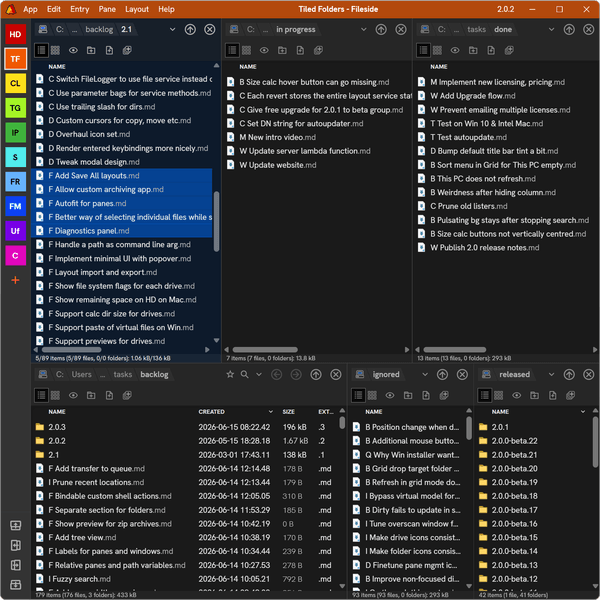
Fileside supports showing listings either as tables with columns for different properties of the entry (like size, various timestamps, flags, permissions, ownership etc), or as a grid of thumbnails representing previews of the file content.
Pane
Each listing lives in a pane, which is the basic building block in a layout. Panes add a path input field for navigation, a toolbar with common pane actions and a status bar showing info about the entries in the pane.
Layout
A layout is a saved arrangement of panes. Every aspect of each pane is saved in the layout, and loading one puts everything back just as it was. All available layouts are shown in the layout bar on the left side of the app window.
Each layout always has exactly one active pane, indicated by a differently coloured background, which is where all keyboard shortcuts affecting entries get routed.
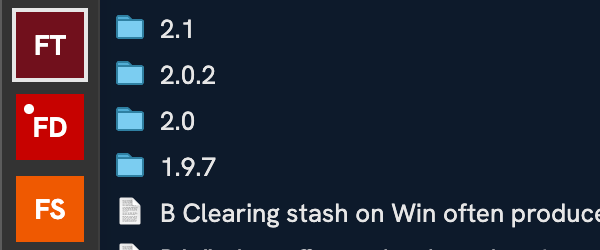
Each layout has a clean state and a dirty state. The clean version represents the last saved state, and the dirty version represents the last edited state as you currently see it on the screen. A dirty layout is indicated by a small dot next to the layout’s label. Saving a dirty layout turns the dirty state into the new clean state, and reverting a layout discards the dirty state and restores the layout to its clean version.
Window
Multiple application windows can be opened, and each window can be set to its own layout.
A window always has one active layout, analogous to how a layout always has one active pane. The active layout is indicated by an outline around its button in the layout bar, and its name is shown in the window’s title bar. By default, the layout’s colour also tints the window’s title bar.
Each window has its state tracked, persisted and restored separately. The list of available layouts is global, and will be instantly synced between windows. However, each window can have its own dirty version of each layout.
Each window also has its own undo history.
Undo
One of Fileside’s design goals is undo for everything. That covers not just entry operations like copying, moving, renaming and deleting, but also changes to listings, panes and layouts. So try hitting Cmd+Z/Ctrl+Z whenever you make a mistake, and it’s most likely going to get you back to where you were. When in doubt, pop open the Edit menu to see if whatever you just did shows up in the Undo [action] menu item.
A side effect of this philosophy is that operations on large files or folders might sometimes take a bit longer, in case we need to stash away a previous version in order to allow undo.
Configuration
Most aspects of the app can be tweaked in the Settings dialog, accessible from the app menu. Individual settings will be described alongside the feature they pertain to below.
The settings and everything else about the app is automatically saved as you make changes, so when you quit and restart, you can pick up where you left off. See Configuration files for details of where state is kept.
Listing folders
Every pane shows its listing either as a table or as a grid of thumbnails. Switch between the two using the toggle at the left of the pane’s toolbar, or with Ctrl+Tab. Whichever view you pick is remembered per pane, along with its columns, sort order and everything else about it. This configuration will never switch out underneath you just because you navigate to a different folder.
Table view
In table view, each entry is a row and its properties are shown in columns.
Right-click the column header bar to choose which columns to show for that pane. The available columns differ somewhat between Mac and Windows. Be aware that enabling more columns can mean slower folder listings. This is especially noticeable on Windows with the Description, Owner and Group columns shown on slower network drives.
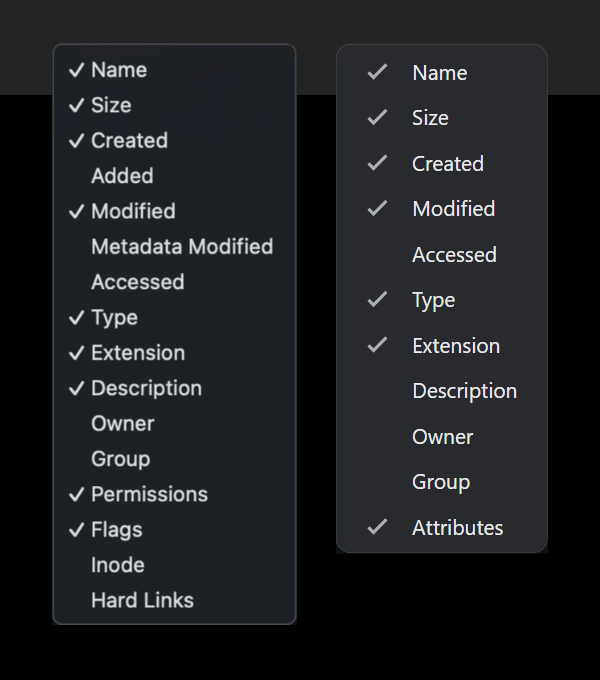
New panes always get the same column configuration as the pane they were created from. So you only need to configure the columns for the first pane in a new layout, and later panes will automatically get the same columns in the same order. To always use a particular set of columns for new panes instead, specify them via the Default columns setting under Listings using the names as shown on the columm headers. You can also customise how dates are displayed via the Date format setting under Listings.
To arrange the columns:
- Move a column by dragging its header.
- Resize a column by dragging the separator line to the right of its header.
- Autofit a column to its contents by double-clicking its separator line.
- Autofit all columns by holding down Shift and double-clicking a separator.
If a pane has more width available to it than its columns need, the Name column automatically grows to fill it. As with everything else, column changes can be undone.
Alternating rows can be given different background colours with the Zebra stripe intensity setting under Listings, which lets you dial in just the right tint.
Grid view
Grid view comes in handy for folders full of photos or other media, particularly those where all the files have names like PXL_20210914_105409994.jpg. Entries for which a thumbnail can be generated show those, and the rest fall back to large icons.
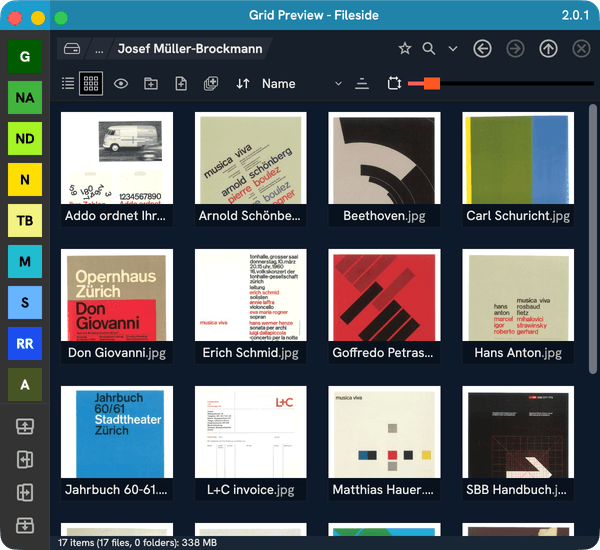
Which file types get thumbnails depends on the operating system. On Mac, native support is very good: not only images and videos, but also PDFs, office documents, e-books, text files, MP3 album art and more. On Windows, not so much. There we get images, videos, album art and not much else.
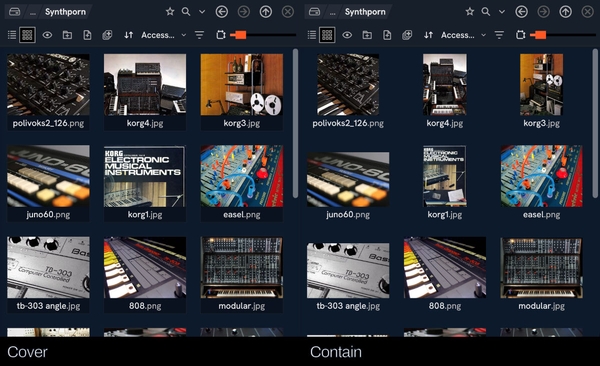
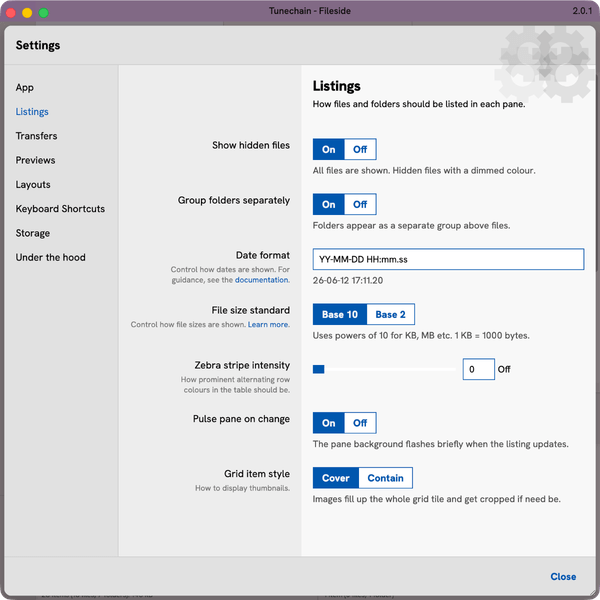
The slider at the right of the toolbar controls the thumbnail size for that pane. How the thumbnails fit into their tiles is controlled by an option under Listings in the Settings dialog:
- Cover will grow the image to fill out its tile, cropping off bits if needed. This one makes the grid look nice and tidy.
- Contain will always display the whole image, resulting in irregularly-shaped tiles for images that are not perfectly square already.
Loading many large image or video files can take a fair bit of time, especially when viewing folders over a network connection. Therefore rendered thumbnails get cached, and the cache can be cleared through the Storage section in Settings if needed. The Under the hood section also has a couple of parameters related to grid view performance to tweak if you feel like rolling your sleeves up.
Sorting and grouping
Click a column header to sort on that column, and click it again to reverse the order. Dates and sizes sort in descending order on the first click, since you’re usually more interested in the newest or largest files than in the oldest or smallest ones. Text columns sort in ascending order. To sort on several columns, Shift+click the headers of the additional columns.
Names are sorted in a way that takes numbers intelligently into account, e.g. file1, file2, file12 when using ascending order.
In grid view, there are no column headers, so the column to sort on is selected from a dropdown on the toolbar instead, with a toggle button next to it for determining the order.
Folders can also be grouped before files or not, regardless of which column you sort on. This is controlled by the Group folders separately setting under Listings, which can also be toggled on the fly with Shift+Cmd+G/Shift+Ctrl+G.
File & folder sizes
There are two conventions for calculating sizes in bytes: base 2 (also known as IEC or JEDEC) and base 10 (also known as SI). Fileside uses base 10 by default which means that 1 KB = 1000 bytes, 1 MB = 1000 KB etc. The base 2 convention, where 1 KB = 1024 bytes, describes what are known as kibibytes, mebibytes etc. If you prefer those, you can change the File size standard setting under Listings.
The size of a folder can’t be known without adding up everything inside it. This can take a while for large folders. So it’s calculated on demand: hover over the Size column of a folder and click the  icon that appears, or use the Calculate Directory Size command (Cmd+K/Ctrl+K). A calculation in progress can be cancelled by clicking the stop button shown while it’s working.
A calculated size displays a tooltip on hover, showing the total number of files and folders within. If the size of some of the contained files couldn’t be read for whatever reason, the total size will have an approximation sign in front of it, indicating that it can’t quite be fully trusted.
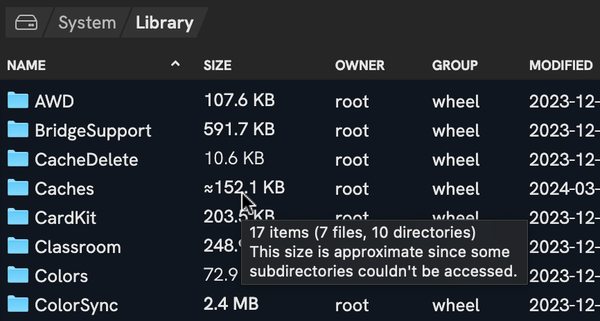
Calculated sizes are cached. The older they get though, the more faded they look, to remind you that the size might be out of date. Hovering over a calculated size reveals a button for recalculating it.
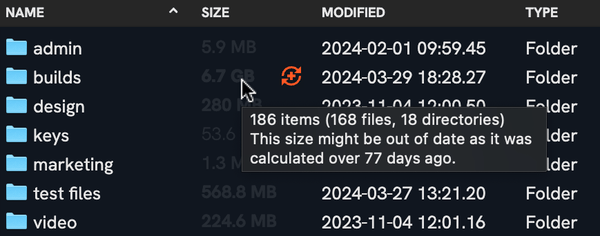
On Mac, some folders inside ~/Library can only be read if Fileside has been granted Full Disk Access. Without it, the size of your home folder can’t be fully calculated. See What is Full Disk Access? for more.
Hidden files
Since Fileside strives for complete transparency, hidden files are shown by default. They’re displayed in a dimmed-out look, to make it immediately obvious which ones are hidden when scanning through a folder. If you’d rather not see them at all, you can turn off the Show hidden files setting under Listings, or toggle it on the fly with Shift+Cmd+./Shift+Ctrl+. (that is the period or full stop character).
Type to jump
To find an entry in a long listing and jump straight to it, just start typing its name while the pane is active. Fileside then jumps to the first entry whose name starts with what you’ve typed, or failing that, the first one whose name contains it. Keep typing to narrow it down, or use Backspace to correct a typo. The typed text is cleared after a moment of inactivity, or straight away with Esc.
Keeping listings up to date
Fileside watches the folders displayed in its panes and updates their listings automatically when something changes, for example when a download finishes. A subtle pulse of the pane’s background indicates that a listing was refreshed. If you find it distracting, it can be switched off with the Pulse pane on change setting under Listings.
Refreshing a listing manually should therefore never really be necessary. But there are some rare cases in which it might come in handy, so the usual F5 on Windows and Cmd+R on Mac work in Fileside too.
Navigating to different locations
To enter a subfolder, double-click it, or press Cmd+Down on Mac or Enter on Windows. To go up to the parent folder, click the up arrow button, hit Cmd+Up on Mac or Backspace on Windows, or double-click on empty space in the pane. The folder you came from will then be selected in the parent, so you can see where you were.
Links to folders open their target inside Fileside too, as if they were regular folders. Mac packages like applications are treated as files, despite them actually being directories under the hood. To step into one, right-click it and choose Show Package Contents (Shift+Cmd+O).
Back and forth
Each pane remembers the folders it has visited. The back and forward buttons move through this history, as do Cmd+[ and Cmd+] on Mac, Alt+Left and Alt+Right on Windows, as well as the back and forward buttons found on some mice. Navigation history is separate from undo, so undo will never navigate and going back will never undo anything.
The path navigator
The path navigator at the top of each pane shows each folder in the current path as a separate segment. Click a segment to jump directly to that folder. Right-click it to get a menu of its sibling folders, for hopping sideways in the folder tree. You can also drop files or folders onto any segment to transfer them to that folder.
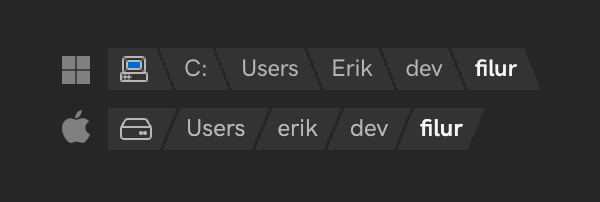
When a path is too long to fit, its beginning is truncated and replaced by a ... segment. Hover over it to show the full path in a tooltip.
The locations menu
Opening the navigator dropdown, or pressing Cmd+P/Ctrl+P, pops open the locations menu.
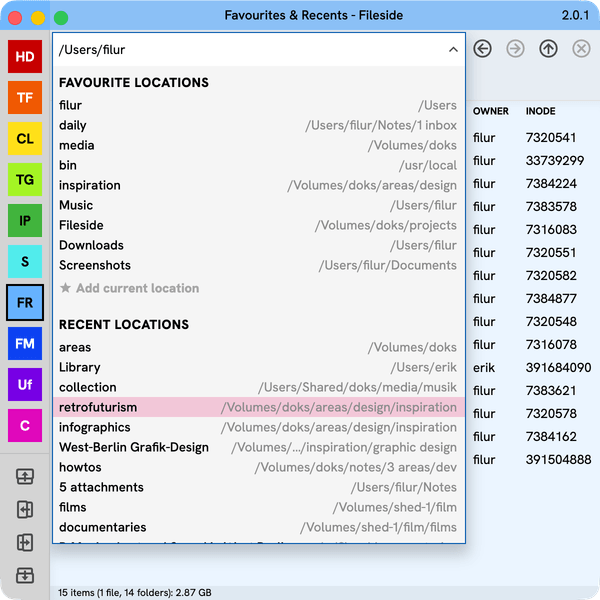
It lists your favourites and recent locations, filtered down as you type. This makes it the go-to feature for those situations where you know you have a folder somewhere but just can’t quite remember where. Type a few characters of its name, and hit Enter once it gets selected.
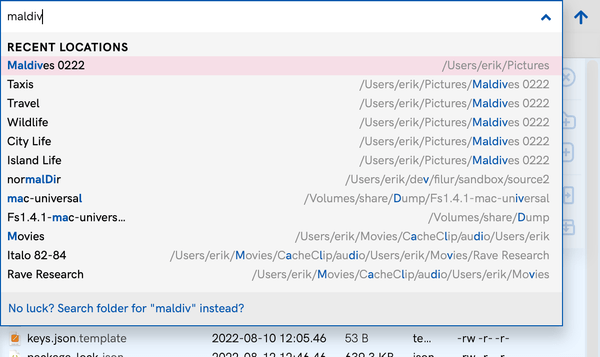
Favourites are folders you’ve bookmarked. To add the current folder as a favourite, click the star toggle in the path navigator, use the Add current location item in the menu, or press Shift+Cmd+F/Shift+Ctrl+F. On first run, Fileside adds some sensible defaults, including the iCloud Drive folder on Mac if present. Favourites can be reordered by dragging them within the menu, and removed by pressing the delete button that appears to the right on hover.
Recent locations are the folders you’ve visited (in any pane), with the most recently visited at the top. The recents can be cleared from the Storage section in Settings, where there’s also a button for pruning stale entries, i.e. removing all entries that no longer exist on the disk. Recent locations can also be removed one-by-one by hovering and clicking the delete button that appears.
Typing a path
In addition to filtering, you can also directly type or paste a path into the path field. As you start typing, say C:\ on Windows or / on Mac, possible completions will automatically appear. Hit Tab to accept the shown suggestion, or Up/Down to flip between them. Repeat this process until you’ve got what you need, and then hit Enter to navigate.
Besides regular absolute paths, the path field understands:
- Relative paths like
./childor../sibling(with\instead of/on Windows), which are resolved relative to whatever folder is currently shown in the pane. - Environment variables like
%APPDATA%on Windows or$HOMEon Mac, a handy way of quickly accessing certain system folders. - Home folder on Mac, by typing
~. - Drive-relative paths on Windows, like
\Program Files, which are resolved relative to the root of the pane’s current drive. - UNC paths on Windows, like
\\server\share\docs. Completions only work for UNC paths you’ve already visited at least once.
On Windows, so-called long paths exceeding the traditional limit of 260 characters work without needing any registry hacks. For a deep dive into the many path formats Windows supports, see The weird world of Windows file paths.
Drives and network drives
On Windows, the special This PC ( ) location lists all mapped drives, including external drives and network drives. On Mac, external and network drives are found under
 /Volumes once mounted.
See the FAQ for more on accessing network drives on Windows and Mac.
Opening files and folders externally
Double-clicking a file opens it in the app associated with its file type, as does pressing Cmd+Down on Mac or Enter on Windows.
With a specific app
To open an entry with something other than its default app, use the Open With submenu on its context menu. It works for folders too.
On Mac, the submenu lists all known apps associated with the file type, along with an Other… entry for picking any app. Note that the Other… dialog just gives you a direct view of /Applications, where Apple no longer stores its bundled apps. If you can’t find the app you’re looking for, try navigating to /System/Applications instead.
You can also point the Other… dialog to a shell script (with file extension .sh), and it will run with the selected files as arguments. Note that the executable permission flag must be set on the script. See the FAQ for more.
A second submenu lets you change which app the file type opens with by default.
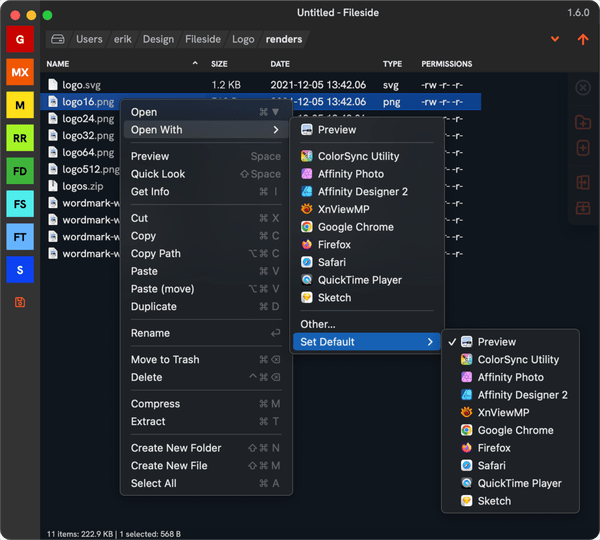
Sadly, on Windows the ability for third-party apps to change app associations has been restricted. Therefore, the context menu entries there just act as links into the native dialogs for opening files and managing app associations.
Files can also be sent to apps using the Share submenu, natively integrated on Mac, and available as Send to on the native Explorer menu on Windows.
In OS manager or a terminal
Every now and then, you might need to leave the wonderful world of Fileside to dive into the treacherous waters of the operating system. To this end, you can open the active pane’s folder in Finder or Explorer (F6), or in a terminal (F7). Which terminal app to launch can be configured under Under the hood > Terminal path in Settings.
Working with entries
Most actions on entries can be found on their context menus. Right-clicking an entry brings up a menu with actions for that entry, plus a Pane submenu holding everything that pertains to the pane itself. Right-clicking empty space in a pane gives you that menu directly.
Creating
You can create new empty folders and files with the two buttons on the pane toolbar, or by pressing Shift+Cmd+N/Shift+Ctrl+N for folders and Shift+Cmd+M/Shift+Ctrl+M for files. The new entry opens for renaming straight away, so you can give it a name.
Renaming
To rename the selected entry, use Rename on the context menu, or press Enter on Mac or F2 on Windows. Only the actual name gets selected, allowing you to start typing without overwriting the extension.
Names containing characters the operating system doesn’t allow are rejected. On Windows, so are names with leading or trailing spaces, names ending in a period, and reserved names like CON or COM1.
Trashing and deleting
There are two ways to get rid of entries:
- Move to Trash/Recycle Bin is the safe choice that can be undone. It’s mapped to the Delete key, and on Mac additionally to Cmd+Backspace.
- Delete removes entries permanently. Since this is not undoable, it will fire up a dialog asking you to confirm the action before going ahead.
Trashed entries go to the system Trash on Mac, and to the Recycle Bin on Windows. Where that isn’t possible, such as on network drives without a bin, or in certain synced cloud provider folders, Fileside falls back to moving them to a temp folder of its own instead, so as to not lose the ability to undo. The location of the temp folder can be changed under Under the hood in Settings, and it can be cleared from the Storage section.
Native menus and info panels
Fileside also gives you access to a few of the operating system’s own tools from the context menu. On Mac, there’s the native Services submenu, for invoking actions provided by other apps. On Windows, the native Explorer menu is available, complete with any extensions other apps have added to it. Choose Explorer Menu from an entry’s context menu, or hold Shift while right-clicking a file or folder to open it directly.
To view the system’s own info panel for an entry, choose Get Info (Cmd+I) on Mac or Properties (Alt+Enter) on Windows.
Working with layouts
The layout bar along the left edge of the window has a button for each of your layouts, showing its initials and its colour. It’s collapsed by default, where hovering over a button opens a flyout revealing each layout’s full name and its controls, but can also be widened by dragging its right edge out.
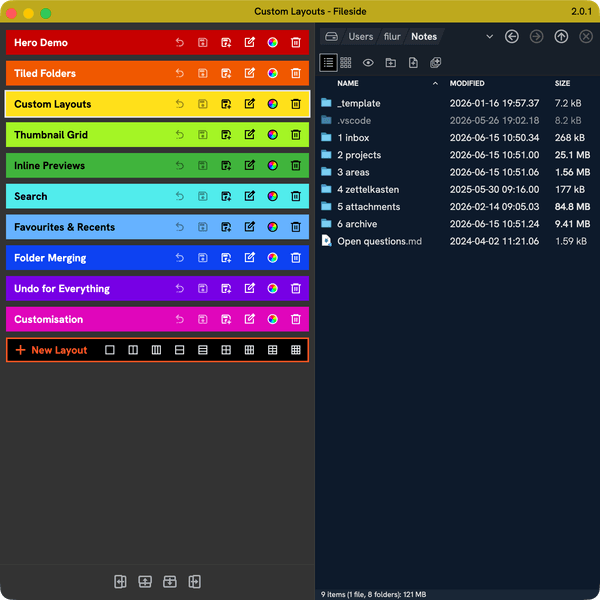
Click one to load it, or use one of the Shift+F1 to Shift+F12 keyboard shortcuts to load any of the first 12 layouts. Up to 100 layouts can be given their own Load Layout keyboard shortcut under Keyboard Shortcuts in Settings. Layout buttons can be reordered by dragging them up and down the bar.
If the flyouts flaring up every time you hover gets distracting, you can set Flyout activation under Layouts in Settings to make them appear on right-click instead.
Arranging panes
Add new panes using the buttons at the bottom of the layout bar in one of four directions: above, below, to the left or to the right of the active pane. The same can be done from the keyboard with Alt+U, Alt+D, Alt+L and Alt+R.
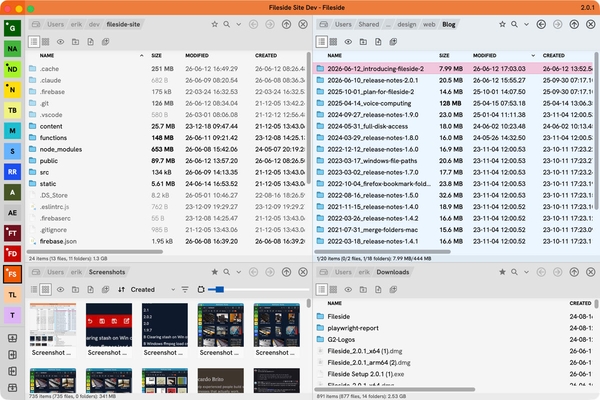
The new pane opens on the same folder as the currently active pane, or on the selected subfolder, if any. You can also use the Open in items from a subfolder’s context menu to achieve the same thing. Or middle-click it to open it to the right.
To move focus to another pane with the keyboard, use Tab and Shift+Tab. To close a pane, click the X, or use Close pane (Alt+W). The last remaining pane in a layout can’t be closed.
Panes and rows can be resized by dragging the dividers between them. Rearranging panes by dragging them around within a layout is not yet possible. As a workaround, add a new pane where you want it moved to, copy and paste its path into the new pane’s path field, then delete the old pane.
If you find yourself cramped for space inside a pane, use Expand pane (Alt+E) to temporarily expand the active pane to take up the whole window. Press Alt+E again, or Esc, to shrink it back.
Creating layouts
Click the + New Layout button (or press Cmd+L/Ctrl+L) to create a new layout. It starts out as a copy of the layout you’re currently on unless you use one of the presets on its flyout, where you can grab a 1x1, 2x1, 3x1, 1x2, 1x3, 2x2, 3x2, 2x3 or 3x3 grid.

You can also copy an existing layout by using the Save As button on its flyout, which will duplicate it just below the original.
To delete a layout, click the Delete button on its flyout, or use Delete Layout in the Layout menu to delete the active one. Like everything else, this can be undone. The last remaining layout can’t be deleted.
Saving and reverting
As soon as you modify a layout so that it deviates meaningfully from its last saved state, a dot appears on its button to show that it’s dirty. The dirty state is remembered even if you jump to a different layout, so you can hop freely between layouts without losing where you were in each one. Dirty states are kept across restarts too. It’s a similar pattern to how open tabs work in many text editors or IDEs like Visual Studio Code.
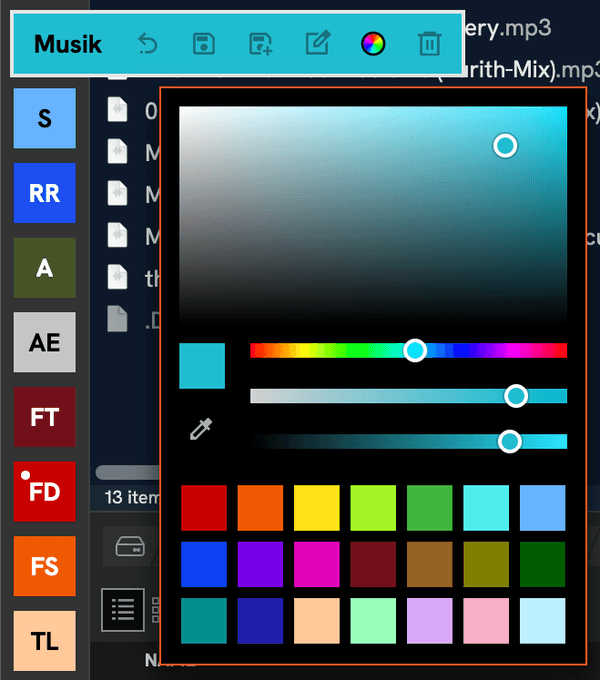
The layout’s flyout toolbar lets you decide what to do with the changes:
- Revert (Cmd+B/Ctrl+B) throws away the changes and restores the last saved state.
- Save (Cmd+S/Ctrl+S) turns the current dirty state into the new clean state.
- Save As (Shift+Cmd+S/Shift+Ctrl+S) stores the current state as a new layout, leaving the original untouched.

Since jumping straight back to a layout’s saved state is something you might want to do quite often, there are several shortcuts for reverting:
- Double-click the layout’s button.
- Alt/Option-click the layout’s button.
- Press Cmd+B/Ctrl+B.
If several layouts are dirty, Save All Layouts saves all of them in one go, and Revert All Layouts reverts all of them.
If you don’t care about keeping temporary layout states, the Autosave layouts setting under Layouts will always save each layout as soon as it changes. With this on, you’ll never see any dirty layouts at all.
Changing layout properties
The Rename button on a layout’s toolbar lets you give it a new name. The initials on its collapsed button are generated from that name, and you can control which initials appear by separating words with spaces, hyphens or underscores, or use TitleCase.
Any custom colour can be assigned to a layout via the colour picker on its toolbar. How much this colour should affect the window’s title bar (if at all) can be controlled through Title bar colour intensity under App in Settings.
Working with multiple windows
Open a new application window with New Window or Cmd+N/Ctrl+N. This is often useful if you work with multiple monitors to view more than one layout at once and to drag things between them. Each window keeps its own dirty version of every layout, so you can make modifications in one window without it affecting the same layout in another window. Saving a layout in one window replaces the new clean state everywhere though.
Each window has its own undo history, so if you accidentally trash a file, you must undo this in the same window where you triggered the trash. File system operations do of course apply globally though, a trashed file is removed from disk regardless of which window it happened in.
Any open windows with their positions and sizes are remembered when closing the app, and restored when opening it again. Unless the app has fewer monitors to work with when next started, in which case windows that would have become invisible are moved to the primary screen.
Launching from terminal
If you launch Fileside from a terminal, you can pass it one or more folder paths as arguments. Fileside then opens a new window with a new layout featuring panes pointed at those folders. This also works when Fileside is already running.
If you do this often, you might want to create an alias (e.g. alias fs=/Applications/Fileside.app/Contents/MacOS/Fileside) or add the application executable’s parent folder to the system’s PATH environment variable.
Moving things around
Copying, moving, linking, trashing and deleting entries are all considered transfers, and every one of them can be undone. Transfers can be started either by dragging and dropping, or by cutting, copying and pasting.
Transfers that take longer than about half a second show their progress in a separate progress window. They run in a background worker process by default, so you can keep browsing in the main app window while a transfer is ongoing. The use of the worker process, and whether it should stay alive between transfers for faster startup, can be toggled under Under the hood in Settings. Several transfers can run at the same time, each with its own progress window. This might not be the best idea though, as it can overwhelm the drive with lots of unrelated reads and writes.
A transfer can be cancelled at any time, even in the middle of a large file, via the Cancel button in the progress dialog. And if a transfer is cancelled or fails partway through, the part that did get completed can still be undone. This can come in handy for backing out of a complicated merge gone wrong.
Drag and drop
After selecting a bunch of entries and starting to drag them, you can drop them onto:
- another pane, to transfer them to the folder shown there,
- a subfolder in a listing, to transfer them into that folder,
- a link to a folder, to transfer them to the link’s target,
- a segment in a pane’s path navigator, to transfer them to that folder,
- any other app outside Fileside which accepts drag and drop.
Any area of a pane that is not the name or icon of a subfolder counts as dropping on the pane itself, which helps reducing the chance of accidentally moving something into a subfolder when you intended to move it to the pane.
On drop, a popup menu asks whether you want to Copy, Move or Link. If you always want the same action, set a default under Transfers > Drop action in Settings to skip the menu. You can also bypass the menu by holding a modifier key while dropping. These vary per platform to align with the conventions already used by their own file managers.
- Mac
- Copy: Option
- Move: Cmd
- Link: Ctrl
- Windows
- Copy: Ctrl
- Move: Shift
- Link: Alt
Drag and drop works between Fileside and other apps in both directions, and between separate Fileside windows. Links and URLs dragged in from a web browser are dropped as files. And on Windows, files can additionally be dragged into Fileside directly out of a zip file opened in Explorer.
Cut, copy and paste
Copy (Cmd+C/Ctrl+C) or Cut (Cmd+X/Ctrl+X) a selection, then tab to the destination pane and hit Paste (Cmd+V/Ctrl+V) to transfer via keyboard. Pasting with a subfolder selected pastes into that folder. It also works with files copied in Finder or Explorer, and vice versa.
Paste comes in a few variants:
- Paste (move) (Alt+Cmd+V/Shift+Ctrl+V) always moves the pasted entries, regardless of whether you copied or cut. Finder users might have built up muscle memory for copying with Cmd+C and then moving with Alt+Cmd+V. That works in Fileside too.
- Paste (link) (Cmd+Ctrl+V/Ctrl+Alt+V) creates links to the copied entries.
- Duplicate (Cmd+D/Ctrl+D) makes a copy of the selected entries in the same folder, equivalent to a copy immediately followed by a paste.
Images can be copied and pasted too. Right-click an image in a browser or elsewhere, choose Copy Image, and paste it directly into a pane as a file. It works the other way too, by right-clicking an image preview within Fileside.
Sometimes you just need to copy the path of a file for use elsewhere. That’s what Copy Path (Cmd+Alt+C/Ctrl+Alt+C) is for. It supports multiple selections, so to copy a whole directory listing, just hit Select All first. For links, a Copy Target Path appears too, which copies the path the link points to.
Merging folders
Sometimes, when transferring entries into already existing folder, we might run into conflicts. If any entries with the same names as those being dragged in already exist in the destination, a dialog will pop up to ask how you’d like to resolve the conflicts.
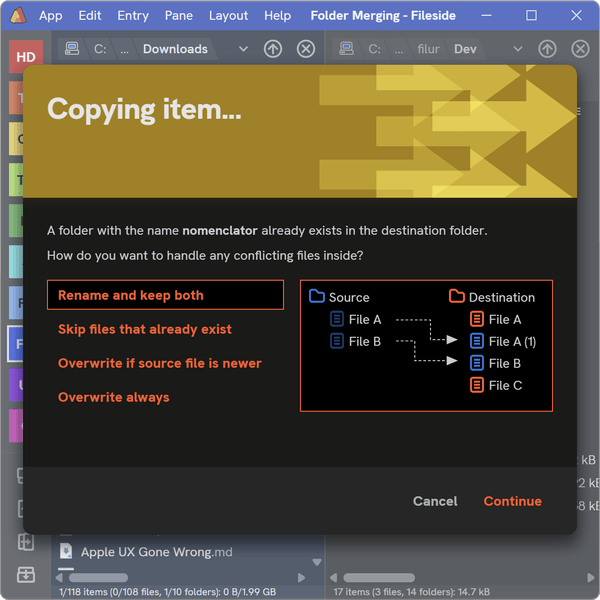
Here’s what the options do:
- Rename and keep both: The source file is copied to a new, unique name by adding a sequential number at the end. That way both the original and the merged-in file are preserved in the destination folder.
- Skip files that already exist: The source file won’t be transferred at all and left in place in the source folder. This applies also when moving.
- Overwrite if source file is newer: The last modified times are compared, and only if the source version is newer does it overwrite the destination file.
- Overwrite always: The destination file is always overwritten by the source version.
For all four options, files in the source folder that don’t exist in the destination get transferred across unchanged, and files in the destination not present in the source are left as is. The first two options are always safe, while the last two will overwrite existing data.
Even if you do choose to overwrite however, the file in the destination folder is moved to the trash before getting overwritten, so that it can be recovered if you need to undo. So even after an overwrite, you can restore the original state if need be. For more on how this compares to merging in Finder, see the in-depth How to merge folders on Mac article.
Preserving dates
By default, copies keep the created and last modified dates of the originals. If you’d rather have copies treated as new files with new timestamps, turn off Preserve date on copy under Transfers in Settings.
The speedometer
During long transfers, a speedometer next to the progress bars gives you an idea of how fast things are going. The thin needle shows the current speed, the darker block the average speed, and the fainter block above it the top speed reached.
Moves within the same drive are fast, since whole folders can just be renamed in one operation as long as there are no conflicts. When merging folders though, more work turns up along the way as conflicts are discovered, which can make the progress bar seem to move backwards at times.
Working with links
Links come in many shapes and forms, and Fileside treats all of them as first-class citizens: symlinks, junctions and shortcuts on Windows, and symlinks and aliases on Mac.
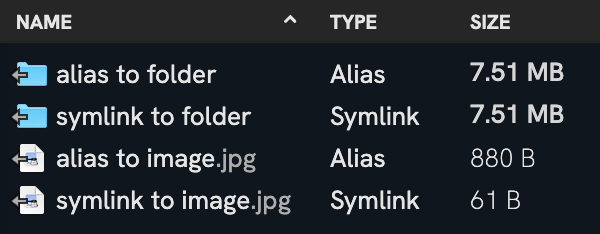
Operating system icons for links usually have an inward-pointing arrow, which doesn’t make a whole lot of sense, since a link points elsewhere, away from itself. Hence, links in Fileside have an outward-pointing arrow instead.
Creating links
There are three ways to create a link to a file or folder:
- Directly: Choose Create Link (Ctrl+Cmd+L/Ctrl+Alt+L) from an entry’s context menu to create a link to it in the same folder.
- Via drag and drop: Choose Link from the drop menu, or hold down Ctrl on Mac or Alt on Windows when dropping.
- Via paste: After copying an entry, use Paste (link) (Ctrl+Cmd+V/Ctrl+Alt+V).
Which type of link gets created is controlled by the Preferred link type setting under Transfers.
How links behave
Links are followed transparently in the cases where you would expect them to be:
- Opening: If the link points to a file, it is opened, and if it points to a folder, it is navigated to inside the same pane.
- Previewing: The link’s target is shown.
- Calculating folder size: For links to folders, the size of the target folder is calculated.
- Dropping on: Entries dropped onto a folder link are transferred to the link’s target.
But they are treated as plain files where that’s the safer choice:
- Copying and moving: Only the link itself is transferred, not what it points to.
- Trashing and deleting: Only the link itself is ever removed, never what it points to.
- Compressing: Only the link itself is added to the archive.
This could result in some broken links at times, but is arguably preferable to unintentionally transferring or compressing whole folder trees.
To see what a link points to, just hover over its name, and the full path will appear in a tooltip. You can also copy it to the clipboard with Copy Target Path on its context menu.
Links on Windows
On Windows, each type of link comes with its own restrictions on how and where it can be created:
- Creating symlinks requires a special permission and even with it, they can’t be created on remote drives.
- Junctions can only point to folders, not files, and can neither be created on, nor point to, remote drives.
- Shortcuts work anywhere, but can’t be used with long paths, i.e. paths exceeding the infamous
MAX_PATHlimit of 260 characters.
Because of this, Fileside uses a fallback strategy when creating links on Windows. If the preferred link type can’t be created, it falls back to creating one that can. So you might end up with a shortcut sometimes even if your preferred type is symlink.
Previewing
Many common file types can be previewed inline, right within the pane. Just hit Space to toggle the preview on/off and start stepping through files with the arrow keys. The preview automatically positions itself based on the dimensions of its pane, and the Preview pane size cap setting under Previews controls how much of the pane it should be allowed to take up at most.
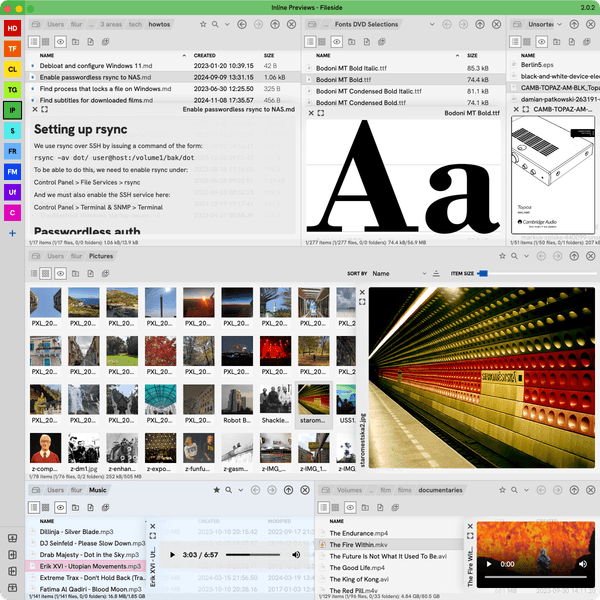
Previews that render an image can be zoomed and panned via trackpad or mouse. Text can be selected and copied from text and Markdown previews, and images can be copied from image previews.
Audio and video previews start playing automatically by default. This can be disabled with the Autoplay media previews setting under Previews. They also have volume controls, which allow fully muting any audio. Volume changes are remembered and applied to all subsequently opened previews of the same type.
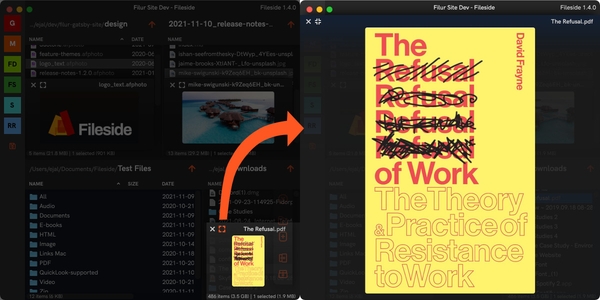
With multiple panes open, the inline previews can get quite small. To get out of a tight spot, hit the preview’s Expand button (or Cmd+E/Ctrl+E) to have it fill the app window. Keyboard stepping with the arrow keys still work in full-screen mode so you can quickly flip through the contents of a folder.
On Mac, it’s also possible to bring up the system’s own Quick Look window with Shift+Space.
Supported file types
The range of supported file types differs between the platforms. On Mac, native support for generating image previews from a large variety of file types via the Quick Look subsystem is very good. On Windows life is harder, and as a result Fileside offers previews for fewer file types there.
Both platforms support images, videos and audio files in many common formats, plus text, markdown, PDF and HTML files. You can also preview a subfolder’s contents at a glance without navigating down into it. On Mac, additional types like office documents, e-books, graphics formats, fonts etc are also available.
Searching
Fileside implements a simple recursive file system search that works from the current folder down. It is always live and does not rely on computing an index upfront. It proceeds breadth-first, which means that entries closer to the starting folder are found before matches deeper down. It will find all entries whose names contain the text you’ve typed, regardless of case.
To start a search, click the search toggle in a pane’s path navigator, press Cmd+F/Ctrl+F, or type ? in the path input field and enter a search term. Results appear as they are found, and the status bar shows the search’s progress.
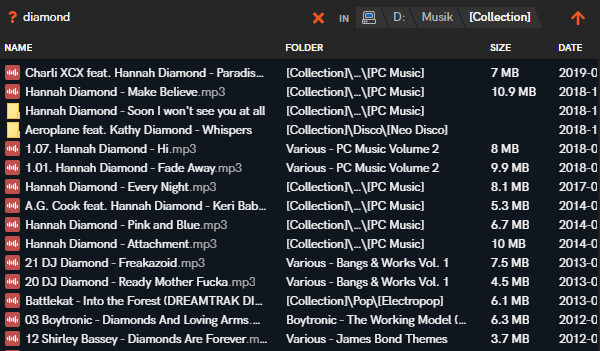
Search always looks downwards from the current folder the pane is showing. To widen the scope, just step up in the folder hierarchy first. A search in progress can be stopped with its stop button, or by pressing Esc, which keeps the results found so far. Press Esc again, or click the close button, to leave search and return to the regular listing.
The search results listing works just like any other pane listing, so you can select, open, preview, trash, copy and move things out as usual. What you can’t do is drop things into it, since it doesn’t represent just one location like a regular listing. An additional Folder column shows the folder in which each result lives. To navigate to it, use one of the Open parent folder entries on the result’s context menu.
Working with archives
Fileside includes basic zipping and unzipping functionality for handling the most common archiving scenarios. Use a dedicated app for compression if you have more advanced needs.
To create a zip archive, select a bunch of entries and choose Compress (Cmd+M/Ctrl+M). To extract a zip archive into a folder, select it and choose Extract (Cmd+T/Ctrl+T). Other archive formats can’t be extracted within Fileside, but can still be opened in an external app by double-clicking them.
On Mac, applications inside zip files need some extra file attributes to launch, which Extract can’t currently preserve. Use the Mac’s Archive Utility to unzip those (see the FAQ).
Managing settings
The Settings dialog can be opened from the application menu and contains plenty of guidance for each option, so we won’t go over all of them in detail here.
Keyboard shortcuts
Every keyboard shortcut can be changed in the Keyboard Shortcuts section. To assign a new one, click the Edit button and record it by pressing the keys you want to assign. Shortcuts that conflict with an existing one will show up as validation errors in the right-hand column. For a list of all the defaults, see the table at the end.
Storage
The Storage section shows at a glance how much space Fileside’s temp folder and its various caches take up, such as thumbnails and calculated folder sizes. You can also clear them from here. It’s possible to have the temp folder be cleared automatically every time you quit.
This is also where you can clear the recent locations history, or run a pruning job, which will step through all the recent locations, check if they still exist on the disk, and if not, remove them from the history. Take care to mount any network drives for which you want to keep their paths before running this, or else they will be considered gone.
Configuration files
All configuration data is stored in Fileside’s application data folder, which can be found at:
- Mac:
/Users/[your_username]/Library/Application Support/Fileside/ - Windows:
C:\Users\[your_username]\AppData\Roaming\Fileside\
The two most important files here are config2.json, which holds the layouts and all other application state, and settings2.json, which holds all your explicitly configured settings from the Settings dialog. Only the settings you’ve actually changed are stored. That way, when a default changes in a later version, the new default automatically comes into effect, unless you’ve overridden it.
If either file fails to load at startup, which can happen if starting an older version of Fileside with a config file from a later version, or after a manual edit introduced a mistake, Fileside saves a copy of it with an extension like .failedToValidate instead of overwriting it. That way you will never lose your confguration, and can rename the file back into place for another attempt after fixing the issue.
These two files are also what you would need to copy over to a new computer to migrate your existing configuration to it after installing Fileside afresh.
Registering the app
The version of Fileside on the Download page is a trial that’s fully functional for 30 days. After buying a license, you’ll receive your license key by email. Click the Enter License Key button in the trial window that appears on startup, or choose Enter License Key… from the app menu, paste the key in and click Validate. If the license is valid, the icon turns into a green tick.
One license covers all computers you personally use, on both platforms.
Automatic updates
For licensed copies, Fileside checks for updates at startup and in the background at regular intervals. If a new version is found, you’ll be offered to download and install it, either via a dialog at startup or a non-intrusive Update button in the title bar. Nothing is downloaded without asking: you decide when to download an update and when to install it, after which Fileside restarts automatically.
To check for updates yourself, choose Check for Updates… from the app menu, or click the version number in the title bar. Background checks can be turned off with the Autoupdate setting under App. Note that autoupdates are only available in licensed copies of Fileside, not in the trial version.
Migrating from Fileside 1
If you already have Fileside 1 installed, Fileside 2 will offer to migrate your existing layouts, settings, favourites and recent locations the first time it starts. For this to work, make sure your existing install is on the latest 1.9.6 version first.
Appendix: Default keyboard shortcuts
All of the below can be reassigned in the Settings dialog.
| Action | Mac | Windows |
|---|---|---|
| Add Pane ↑ | Alt+U | Alt+U |
| Add Pane ← | Alt+L | Alt+L |
| Add Pane → | Alt+R | Alt+R |
| Add Pane ↓ | Alt+D | Alt+D |
| Calculate Directory Size | Cmd+K | Ctrl+K |
| Close Pane | Alt+W | Alt+W |
| Close Window | Cmd+W | Ctrl+W |
| Compress | Cmd+M | Ctrl+M |
| Copy | Cmd+C | Ctrl+C |
| Copy Path | Cmd+Alt+C | Ctrl+Alt+C |
| Create Link | Ctrl+Cmd+L | Ctrl+Alt+L |
| Create New File | Shift+Cmd+M | Shift+Ctrl+M |
| Create New Folder | Shift+Cmd+N | Shift+Ctrl+N |
| Cut | Cmd+X | Ctrl+X |
| Delete | Ctrl+Cmd+Backspace | Shift+Delete |
| Duplicate | Cmd+D | Ctrl+D |
| Expand/Shrink Pane | Alt+E | Alt+E |
| Expand/Shrink Preview | Cmd+E | Ctrl+E |
| Extract | Cmd+T | Ctrl+T |
| Get Info / Properties | Cmd+I | Alt+Enter |
| Go to Next Pane | Tab | Tab |
| Go to Previous Pane | Shift+Tab | Shift+Tab |
| Load Layout 01–12 | Shift+F1 – Shift+F12 | Shift+F1 – Shift+F12 |
| Move to Trash / Recycle Bin | Cmd+Backspace | Delete |
| Navigate Back | Cmd+[ | Alt+Left |
| Navigate Forward | Cmd+] | Alt+Right |
| Navigate Up | Cmd+Up | Backspace |
| New Layout… | Cmd+L | Ctrl+L |
| New Window | Cmd+N | Ctrl+N |
| Open | Cmd+Down | Enter |
| Open in Finder / Explorer | F6 | F6 |
| Open in Terminal / Command Prompt | F7 | F7 |
| Open Locations | Cmd+P | Ctrl+P |
| Open Search | Cmd+F | Ctrl+F |
| Paste | Cmd+V | Ctrl+V |
| Paste (link) | Cmd+Ctrl+V | Ctrl+Alt+V |
| Paste (move) | Cmd+Alt+V | Ctrl+Shift+V |
| Quick Look | Shift+Space | |
| Quit / Exit | Cmd+Q | Alt+F4 |
| Redo | Cmd+Y | Ctrl+Y |
| Refresh | Cmd+R | F5 |
| Rename | Enter | F2 |
| Revert All Layouts | Alt+Cmd+B | Ctrl+Alt+B |
| Revert Layout | Cmd+B | Ctrl+B |
| Save All Layouts | Alt+Cmd+S | Ctrl+Alt+S |
| Save Layout | Cmd+S | Ctrl+S |
| Save Layout As… | Shift+Cmd+S | Shift+Ctrl+S |
| Select All | Cmd+A | Ctrl+A |
| Settings | Cmd+, | Ctrl+, |
| Show Package Contents | Shift+Cmd+O | |
| Toggle Favourite | Shift+Cmd+F | Shift+Ctrl+F |
| Toggle “Group folders separately” | Shift+Cmd+G | Shift+Ctrl+G |
| Toggle Pane View | Ctrl+Tab | Ctrl+Tab |
| Toggle Preview | Space | Space |
| Toggle “Show hidden files” | Shift+Cmd+. | Shift+Ctrl+. |
| Undo | Cmd+Z | Ctrl+Z |
| View as Grid | Cmd+F2 | Ctrl+F2 |
| View as Table | Cmd+F1 | Ctrl+F1 |
Last updated: 30 October 2026